

Recently, our client, an appliance repair and installation company in Bermuda, requested an update to the way images are added to their system. Using an iPad, field technicians take photos during service calls and upload them one at a time into a container field, which exists as a repeating field of 20 repetitions.
There were two issues with this process. First, when the client wanted to add additional images, extra repetitions had to be added to the field and more slider panels added to the layouts. Second, inserting one image at a time is a slow process when on the job as FileMaker doesn’t have a way to select multiple images and upload them all at once. Additionally, the client wanted an easy way to rotate images that had been created in the incorrect orientation, which sometimes happens on iOS devices.
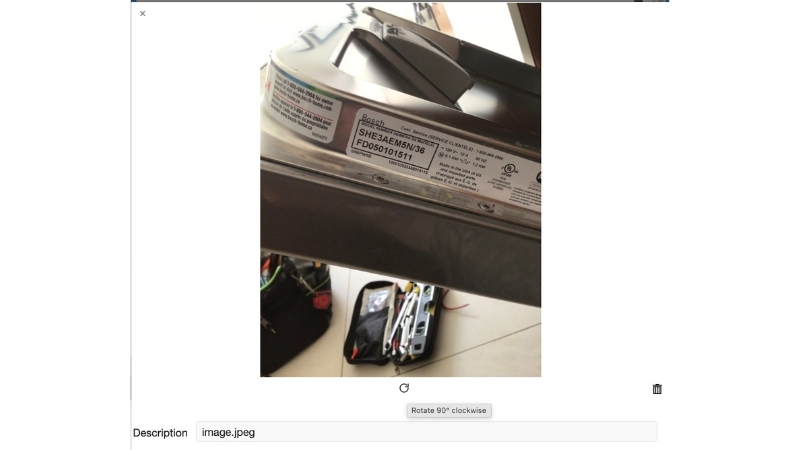
While doing some research, we came across a blog post from NRG, which was based on an original post from Nusu Alabuga at FormCarry. These solutions utilized a bit of JavaScript and a WebViewer to handle the multi-image upload. We built upon this by adding both a WebViewer-based gallery and, using the method from our Multi-Image blog post, the ability to rotate images.
The setup
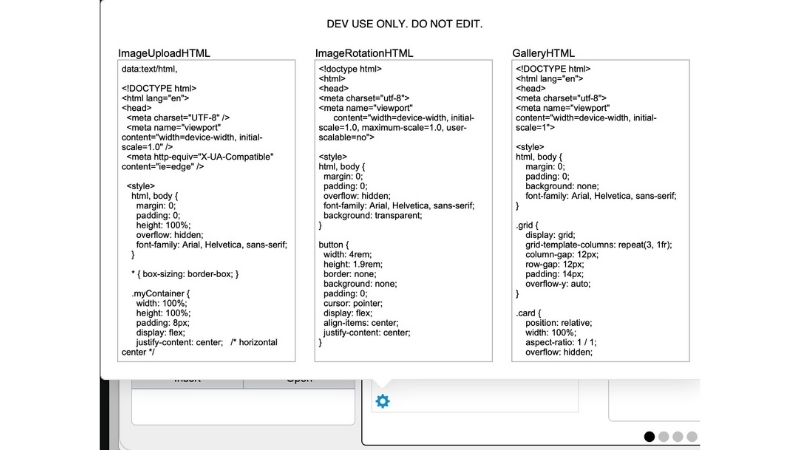
First we created an Images Table to store photos related to Service Calls. Next, we added three fields to the client’s Preferences table to store the HTML:
- GalleryHTML
- imageRotationHTML
- imageUploadHTML
In the Service Call table, we added a calculation field that inserts a little bit of JavaScript into the HTML to render the related image records.
The Upload and Gallery WebViewers were placed on the technicians’ iPad layout.
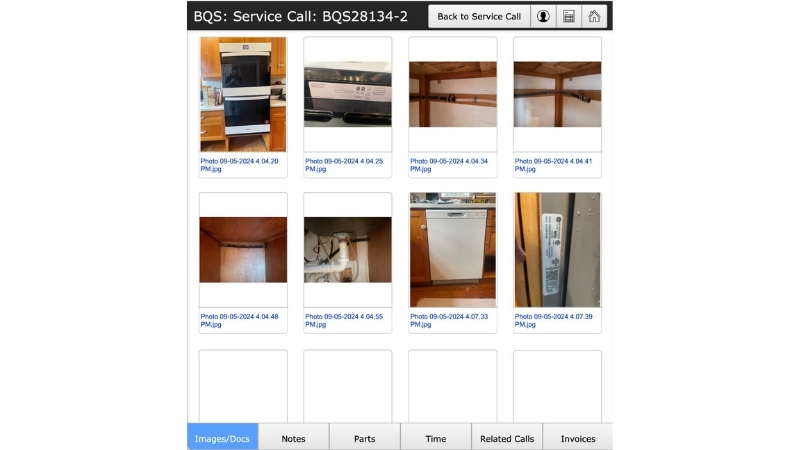
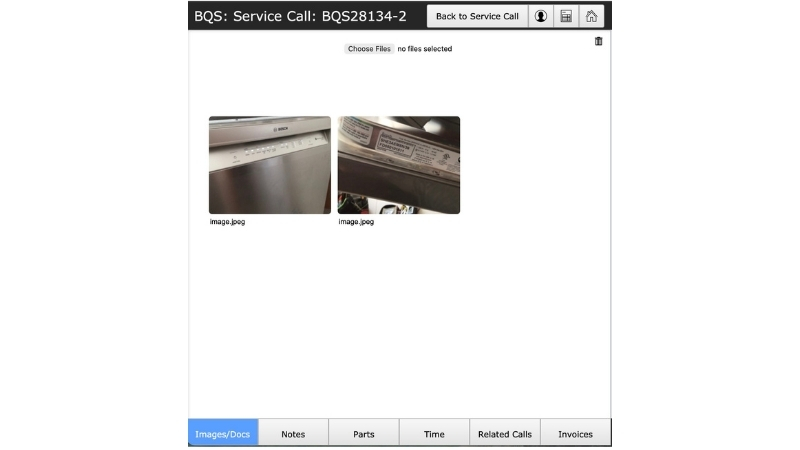
Clicking on an image in the gallery opens a card window of the selected image. This layout has the Rotation WebViewer and the user can edit the image’s description if needed.
Finishing touches
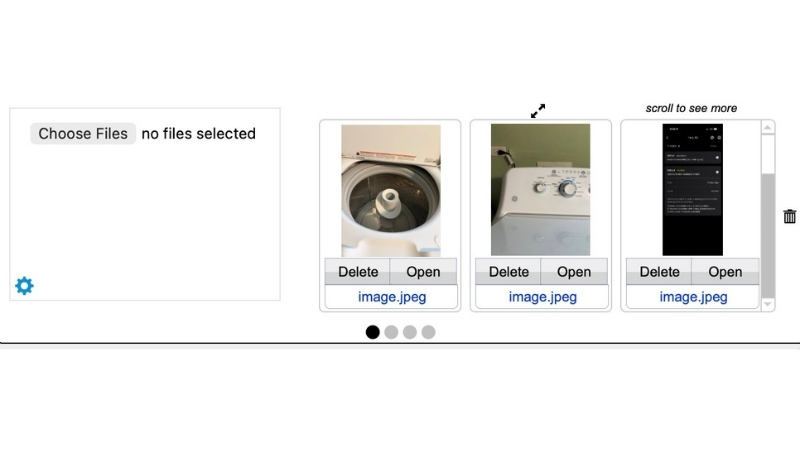
At the client’s request, we added several enhancements to support office-based workflows. Administrators working on desktop computers needed a more efficient way to review larger versions of multiple images. To accommodate this, we added a portal view to the main layout so that uploaded images can be previewed directly.
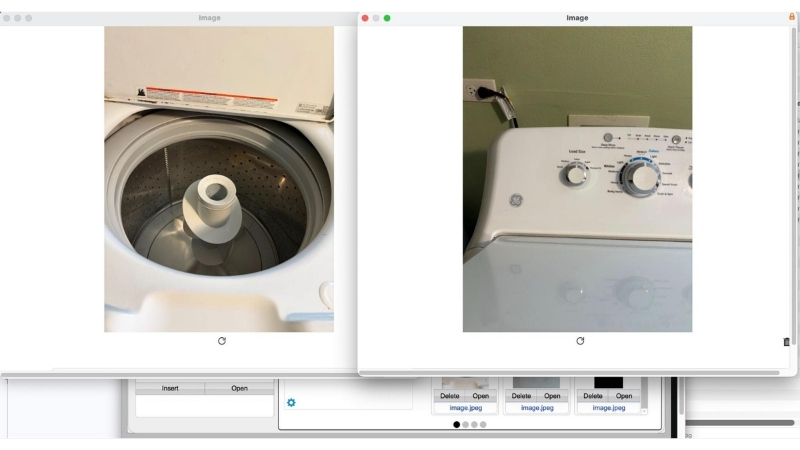
Selecting the “Open” button displays the full image in a document window that can be resized and repositioned. Multiple image windows can remain open simultaneously, making side-by-side comparison easier during review.
The WebViewer-based gallery can also be opened to display all related images. For future updates, we placed a gear icon on the layout, which reveals a popover panel with quick access to the HTML fields. This icon is only viewable for users with full access privileges.
Results
Converting the client’s repeating container field into a related Images table removed the built-in limitation of 20 image repetitions and replaced it with a scalable structure. Technicians can now upload an unlimited number of images to a service call without requiring layout changes or additional slider panels.
The WebViewer-based gallery automatically expands to display all related images, eliminating the need to redesign layouts as image counts grow. Selecting and uploading multiple images at once significantly reduces the time spent on site, especially when documenting complex service calls.
The rotation feature allows technicians to correct orientation issues immediately, preventing office staff from having to adjust or request replacements later. Office administrators also benefit from improved image review, with the ability to open multiple images into separate document windows for comparison.
Overall, this approach not only straightened out the upload process but also helped turn a rigid implementation into a more flexible and maintainable architecture. The result is a faster workflow for field technicians and a cleaner, long-term solution for the client’s system.